Looking to enjoy your Mac on a bigger screen? Connecting it to a TV via HDMI is great for streaming, presentations, or browsing. This guide will show you how. Grab your HDMI cable, and let’s begin!
Looking to enjoy your Mac on a bigger screen? Connecting it to a TV via HDMI is great for streaming, presentations, or browsing. This guide will show you how. Grab your HDMI cable, and let’s begin!
Step-By-Step Guide: How to Connect your Mac to a TV via HDMI
Follow these steps to set up your Mac with your TV
Prepare: Turn off both your Mac and TV.
Connect: Plug one end of the HDMI cable into your Mac's port and the other end into an available HDMI port on your TV.
Power On: Turn on your TV first, then your Mac. Wait for both to start fully.
Select Input: On your TV, use the remote to select the corresponding HDMI input (e.g., HDMI 1).
Configure Display (Mac): On your Mac, go to System Settings > Displays. Under the Arrangement tab, check "Mirror Displays" to duplicate your screen.
Configure Audio (Mac): Go to System Settings > Sound. In the Output tab, select your TV to route audio through its speakers.
Important factors
To ensure a smooth connection and the best experience, please confirm the following before starting: First, check if your Mac has an HDMI port; for newer cases, a USB-C to HDMI adapter is usually required. Next, ensure your Mac and TV firmware are updated to the latest version to avoid compatibility issues. Finally, it is recommended to use a certified high-speed HDMI adapter to ensure stable video signal transmission and picture quality.
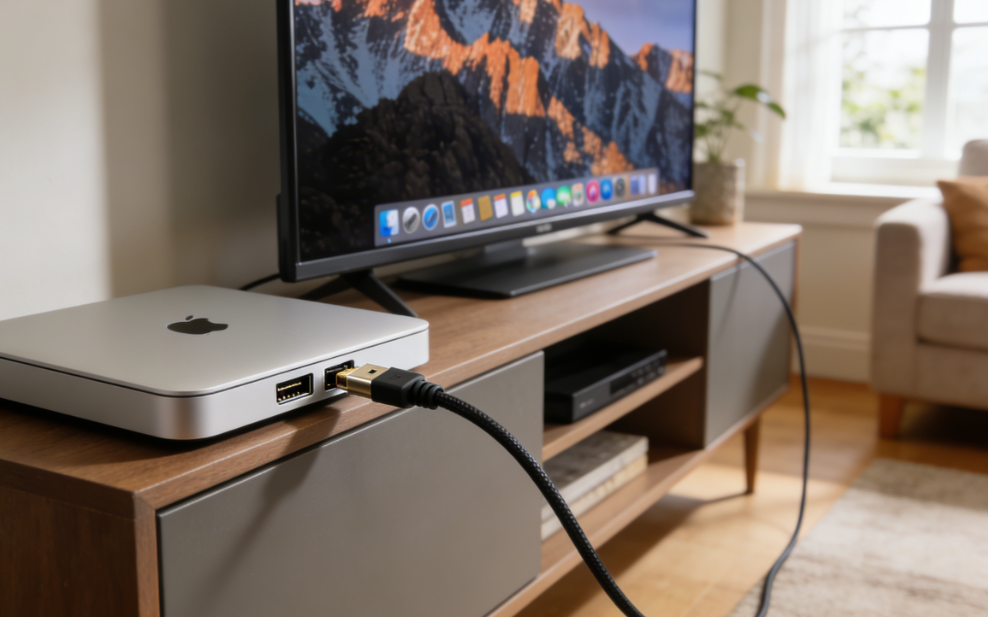
Advantages of HDMI
The main advantages of HDMI lie in its wide applicability and user-friendliness. As a universal standard, it is widely used in consumer electronics devices such as televisions, audio systems, and game consoles, offering excellent compatibility. Furthermore, HDMI features Audio Return Channel (ARC) and Consumer Electronics Control (CEC) capabilities, allowing users to operate multiple interconnected devices with a single remote control, greatly simplifying the user experience.
Conclusion
Connecting your Mac to a TV with HDMI is simple and versatile, unlocking its potential on the big screen. This single cable expands your Mac’s possibilities, transforming how you watch, work, and play for a truly immersive experience.


